
Manual
Everything sQRted does, and how to drive it
sQRted reads the barcode on each separator page, splits a scanned batch into individual documents, and files each one into the exact folder and file name written into that barcode. This manual covers every screen and every setting.
Getting started
Three things have to line up: a folder your scanner drops PDFs into, a folder those documents should end up in, and barcodes that say where each document belongs.
- Install and open sQRted. It runs immediately, with no signup.
- Add a source folder with + Add, then pick the destination root when prompted.
- Put a batch of scans in that folder and press Dry run to see what would happen.
- Press Run when the preview looks right.
Nothing is destroyed along the way. Originals move to a processed folder, anything unreadable goes to error, and every run is logged. sQRted never deletes your scans.
How barcodes become paths
A barcode value is read as a path relative to the destination root. Forward slashes become folders, and the last segment becomes the file name.
| Barcode value | Destination root | Document is filed as |
|---|---|---|
PODs/2026-08/POD-44821 |
C:\Work\Operations |
C:\Work\Operations\PODs\2026-08\POD-44821.pdf |
Invoices/ACME/INV-1077 |
C:\Work\Operations |
C:\Work\Operations\Invoices\ACME\INV-1077.pdf |
DOCKET-8841 |
C:\Work\Workshop |
C:\Work\Workshop\DOCKET-8841.pdf |
Missing folders are created automatically. The .pdf extension is added if the
barcode does not already end in one. Characters Windows will not accept in a file name are
removed, and a value that tries to climb outside the destination root (with ..,
for example) is rejected and sent to the error folder.
If your barcodes are plain identifiers rather than paths, see routing rules, which turn them into paths for you.
Where the split happens
A new document begins at every page carrying a barcode and runs until the page before the next one. In a six page batch with barcodes on pages 1, 3 and 5, you get three two page documents. The barcode page is kept as page 1 of its document unless you turn that off.
Pages that appear before the first barcode have no destination, so they go to the
error folder as <name>_leading-pages.pdf rather than being guessed at.
When every page carries a barcode
Some systems print the identifier on every page rather than on a separator sheet in front. The rule above would turn a five page delivery docket into five one page documents, which is not what anyone wants.
Set Where one document ends and the next begins to
When the barcode value changes in Configure, or "splitMode": "valueChange"
in the config file. A new document then starts only when the barcode reads something
different from the page before it.
| Pages read | At every barcode | When the value changes |
|---|---|---|
A A A B B | 5 documents | 2 documents, of 3 and 2 pages |
A A B B A A | 6 documents | 3 documents: the last A block is a separate job |
A (blank) A B | 3 documents | 2 documents; the unreadable page stays with A |
A page that does not read at all stays with the document in progress, so one bad scan in the middle does not split a document in two. In this mode the barcode page is always kept, because it is part of the document rather than a separator, so keep the barcode page no longer applies.
Blank pages from duplex scanning
A duplex scanner scans both sides of every sheet. Feed single-sided paperwork through it and
every second page comes out blank. Tick Remove blank pages in Configure, or
set "removeBlankPages": true, and those pages are dropped before filing.
- A page carrying a barcode is never removed, however little ink it has. A separator sheet is nearly empty by design.
- Blankness is judged on the page's densest patch, about 2 cm square, not on the page as a whole. Scanner speckle spreads out; real marks do not.
- The default threshold is
1.0percent. Heavy speckle measures around 0.7 and a single signature line around 3.7, so the gap is wide. - Use dry run first. Every dropped page is named in the log, so you can see exactly what would go before anything is filed.
One limitation worth knowing: a blank page with hole punches measures about 4 percent and is kept as content. That is deliberate. Keeping a blank page is a nuisance, and deleting a real one is not, so the setting errs towards keeping.
The main window
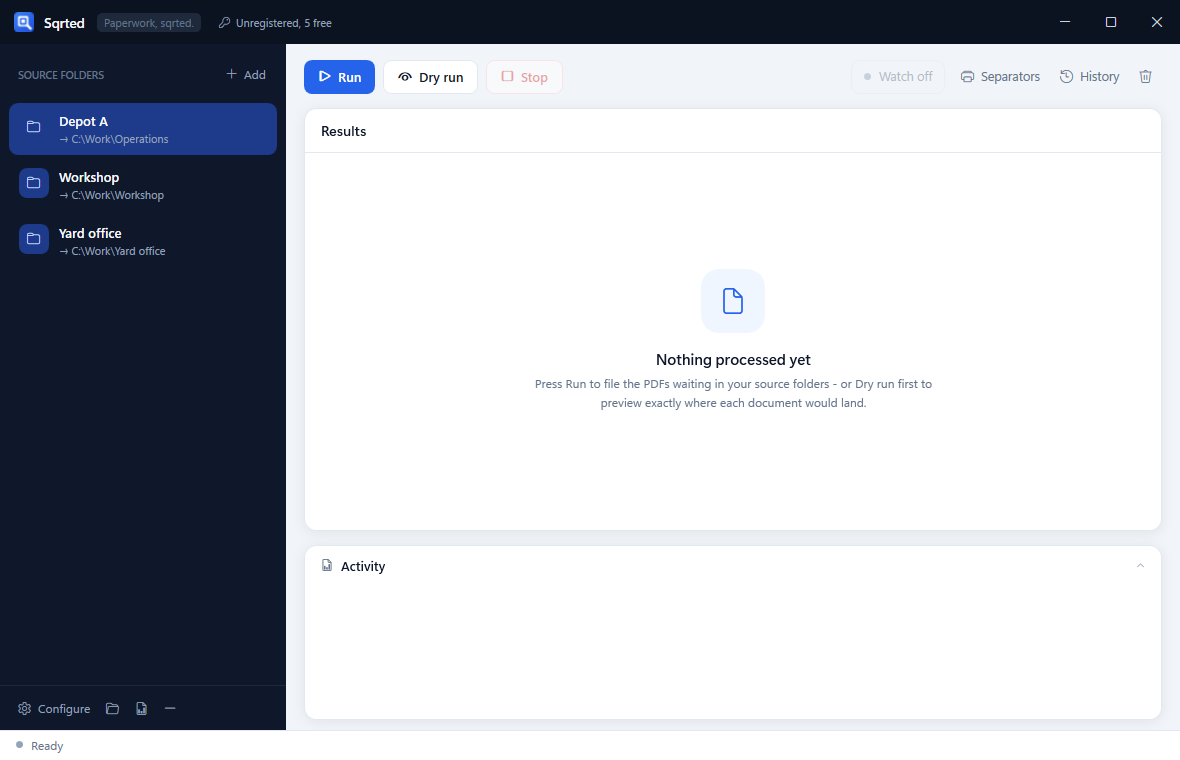
| Control | What it does |
|---|---|
| Run | Files every document waiting in every source folder. |
| Dry run | Shows exactly what Run would do, without touching anything. |
| Stop | Stops after the current page. Documents already filed stay filed. |
| Watch | Files documents automatically as they arrive. Needs an Unattended seat. |
| Separators | Creates printable QR separator sheets. |
| History | Every past run, including ones the service did while you were away. |
| Clear | Empties the results list on screen. Nothing on disk changes. |
| + Add | Adds a source folder and asks where its documents should go. |
| Configure | All settings for the selected source folder. |
| Status bar | Current activity, and the registration state in the title bar. |
Source folders
A source folder is somewhere your scanner drops files. Each one carries its own destination and its own settings, which is what lets one machine file the depot's paperwork, the workshop's dockets and head office invoices to three completely different places.
Settings live in a small _sqrted.json file inside the source folder,
not in the app. Copy that folder to another machine and its configuration goes with it.
Only the top level is processed. Files in sub-folders of a source folder are left alone, which keeps processed and error from being picked up again.
Dry run
Dry run does everything a real run does except write. Pages are rendered, barcodes decoded, destinations resolved, name clashes worked out. Then it shows you the result and stops.
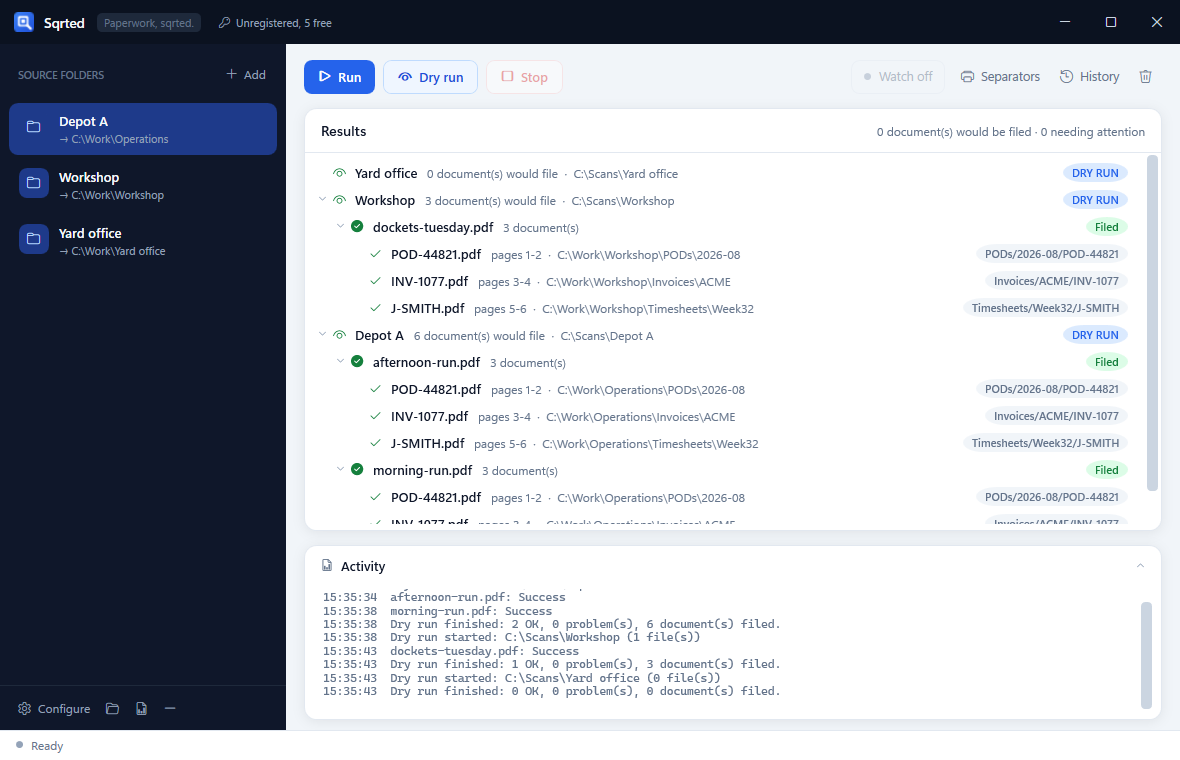
Use it whenever something is new or uncertain:
- The first batch from a new scanner or a new operator.
- After changing routing rules, to confirm the paths come out right.
- When a document did not file as expected and you want to see what sQRted reads.
Dry run is unlimited, forever, registered or not. Even with the free allowance fully used, you can keep pointing sQRted at real batches and seeing exactly what it would do.
Running, and reading the results
Pressing Run processes each source folder in turn. For every file it:
- Waits until the file is finished being written, retrying if the scanner still has it open.
- Renders and reads each page.
- Splits the batch at every barcode.
- Writes each document to its destination, creating folders as needed.
- Moves the original into
processed.
The results tree
Three levels: the run, then each input file, then each document produced. Colours carry meaning.
| Badge | Meaning |
|---|---|
| Filed | Everything in that file was filed successfully. |
| Warnings | Filed, but something needs a look, such as pages before the first barcode. |
| No barcode | No readable barcode anywhere in the file. Moved to error. |
| Error | The file could not be processed, for example a damaged PDF. |
Double-click any row to open that file in Explorer.
When a file already exists
sQRted never silently overwrites. Choose per destination in Configure:
| Setting | Behaviour |
|---|---|
| Keep both | The new document gets (1), (2) and so on. The default. |
| Overwrite | Replaces the existing file. Useful with OneDrive, which keeps version history. |
| Do not file | Sends the new document to the error folder for a human to compare. |
Configure a destination
Select a source folder and press Configure. Everything here applies to that folder alone.
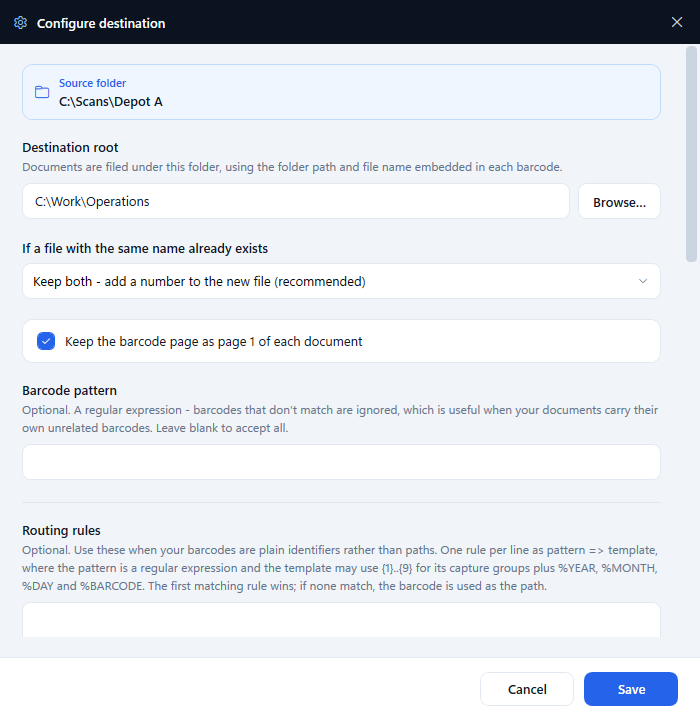
_sqrted.json inside the source folder.| Setting | What it is for |
|---|---|
| Destination root | The folder everything is filed under. Can be a OneDrive or SharePoint synced folder; sync happens outside sQRted. It cannot be the source folder or inside it. |
| If a file already exists | Keep both, overwrite, or divert to the error folder. |
| Keep the barcode page | On by default, so the separator sheet stays as page 1. Turn it off when the barcode is printed on the document itself and you do not want it duplicated. |
| Barcode pattern | A regular expression that a barcode must match to count. Use it when your documents carry unrelated barcodes, such as courier labels. Leave blank to accept everything. |
A useful pattern. ^[A-Za-z0-9 _-]+(/[A-Za-z0-9 _.-]+)+$ accepts only values containing a slash, which ignores plain product barcodes while accepting anything that looks like a path.
Routing rules
Rules exist for the common case where your barcodes are already printed and are plain identifiers, not paths. A rule matches a barcode with a regular expression and builds a path from it. One rule per line:
^(\d{5})$ => PODs/%YEAR-%MONTH/POD-{1}
That turns barcode 44821 into PODs/2026-08/POD-44821. Rules are tried
in order and the first match wins. If nothing matches, the barcode is used as the path,
which is the normal behaviour.
What you can use in a template
| Token | Becomes |
|---|---|
| {1} to {9} | The capture groups from your pattern, in order. |
| %BARCODE | The whole barcode value. |
| %ORIG | The input file name, without its extension. |
| %PAGE | The page the barcode was found on. |
| %SEQ | The document's position in the run. |
| %YEAR %YEAR2 %MONTH %DAY | Run date parts, for example 2026, 26, 08, 07. |
| %HOUR %MIN %SEC | Run time parts. |
Worked examples
| Pattern | Template | Barcode becomes |
|---|---|---|
^(\d{5})$ |
PODs/%YEAR-%MONTH/POD-{1} |
44821 to PODs/2026-08/POD-44821 |
^INV-(\d+)-(\w+)$ |
Invoices/{2}/INV-{1} |
INV-1077-ACME to Invoices/ACME/INV-1077 |
^DKT(\d+)$ |
Dockets/%YEAR/%MONTH/DKT-{1} |
DKT8841 to Dockets/2026/08/DKT-8841 |
A rule can also be marked to send matching documents straight to the error folder, which is handy for a barcode range you know should never be filed automatically.
Always dry run after changing rules. The preview shows the exact resulting path for every document, which catches a mistyped template before it creates a hundred wrong folders.
Lookup tables
When the mapping cannot be expressed as a pattern, use a lookup table: a CSV or TSV with the barcode value in the first column and its destination in the second.
SHEET-001,Contracts/ACME/Supply-agreement
SHEET-002,Contracts/Bell/Service-agreement
DKT-8841,Workshop/2026/Job-8841
The table is applied first, and the result then goes through the routing rules, so the two work together. The path can be absolute or relative to the source folder, and the file is re-read at the start of every run, so you can maintain it in Excel without restarting anything.
Tick Send documents to the error folder when the barcode is not in the table to make the table authoritative, which is the right choice when only known documents should ever be filed.
Recognition and file types
Barcode types
QR and Code 128 are on by default. Also available: Code 39, Code 93, DataMatrix, PDF417, EAN-13, EAN-8, UPC-A, UPC-E, Codabar, ITF and Aztec. Turn off the ones you do not use, which is both faster and less likely to misread something.
QR is the best choice for separator sheets. Paths are long, and a Code 128 encoding PODs/2026-08/POD-44821 becomes physically wide and fragile. QR stays compact and survives creases and coffee.
Reading effort
When a page does not read first time, sQRted retries it with progressively harder processing: contrast stretching, then black and white conversion, then inversion for white-on-black labels. Thorough adds one more step: it reads the page again at twice the resolution. That is the only thing that recovers a barcode printed too small for the scan, because cleaning an image up cannot put back detail the scanner never captured.
| Level | Use when |
|---|---|
| Off | Your scans are pristine and speed matters most. |
| Light | Occasional faint pages. |
| Balanced | The default. Right for almost everyone. |
| Thorough | Old copiers, faxes, photocopies of photocopies, or a barcode printed too small to make out. |
Resolution
300 dpi suits nearly every scan. Raising it can rescue very small barcodes at the cost of speed; lowering it is faster but starts losing fine detail. Change it only if dry runs show pages that will not read.
File types
PDF and TIFF, including the CCITT Group 3 and Group 4 fax compressions that copiers and older capture systems produce. Multi-page TIFF is split the same way as PDF. Output is PDF by default; choose keep the original format if TIFF must stay TIFF.
Separator sheets
Press Separators to make the sheets you put in front of each document. Type one destination per line, or paste a CSV exported from another system.
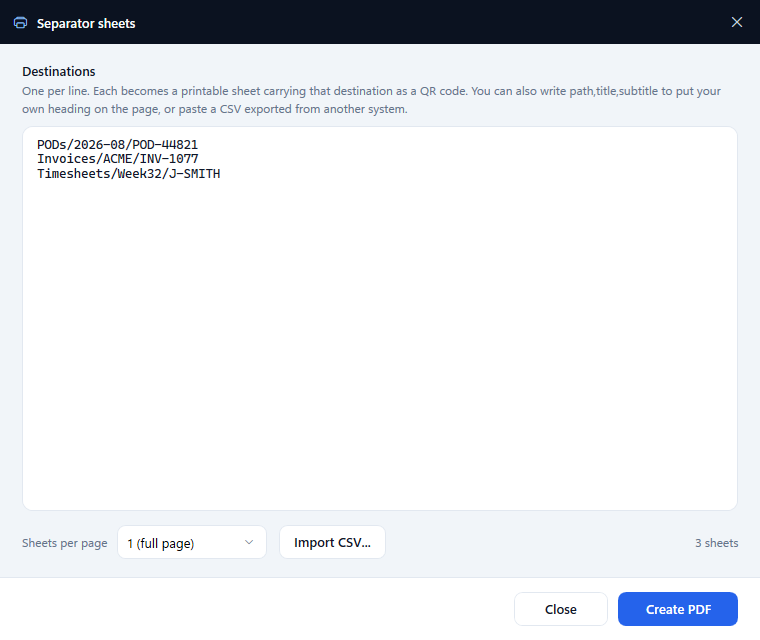
Write path,title,subtitle to put your own heading on a sheet, which helps whoever
is standing at the scanner:
PODs/2026-08/POD-44821,Proof of delivery,Job 44821 - Northern run
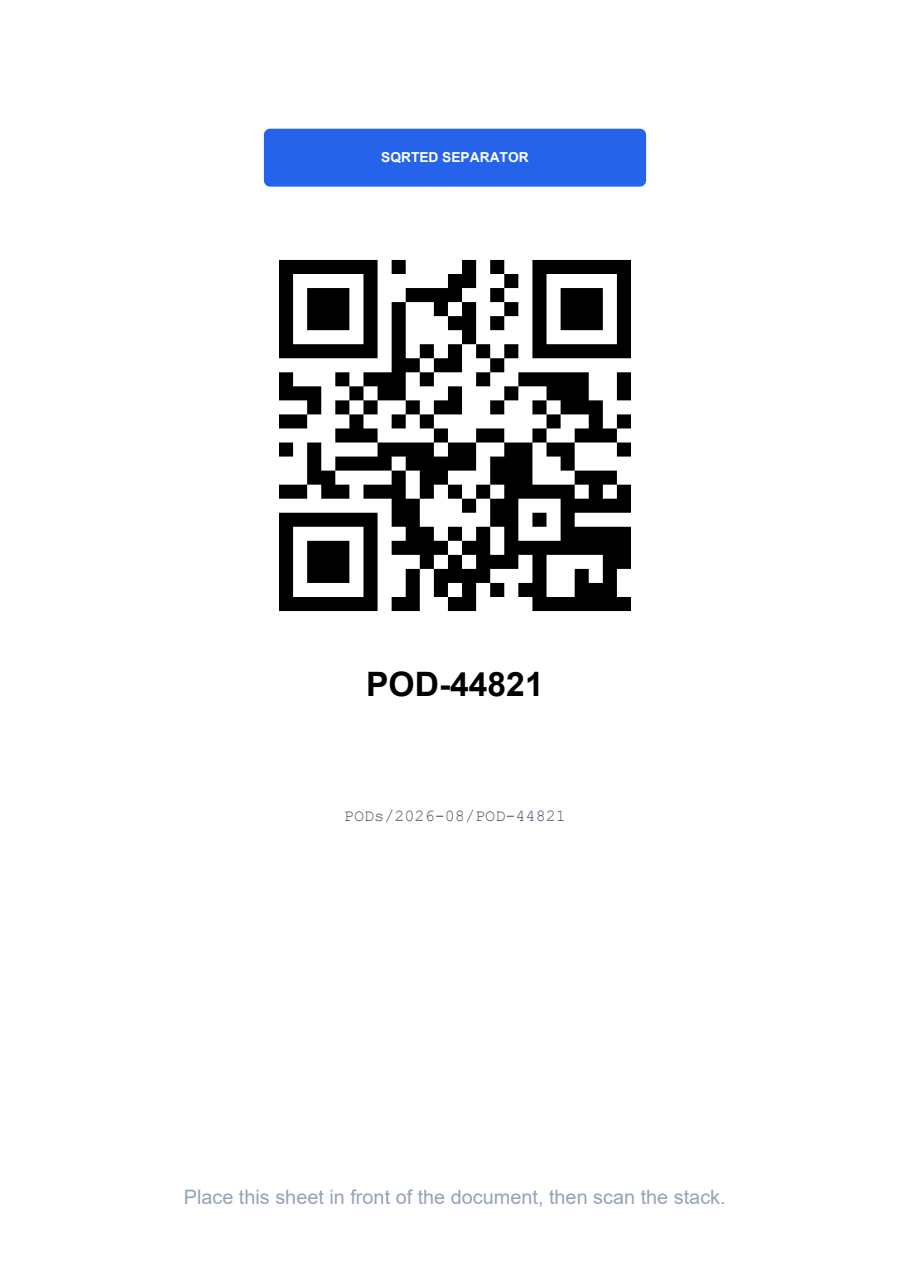
Choose 1, 2 or 4 sheets per page. Full page sheets are easiest for the scanner to see and easiest to grab from a pile; four to a page saves paper when you are cutting them up for a job pack.
Print at 100%. Any fit to page or shrink oversized option in the print dialog scales the QR code down and can make it harder to read.
Run history
Every real run is recorded beside its own source folder, so the record survives closing the app and includes runs the Windows Service did overnight.
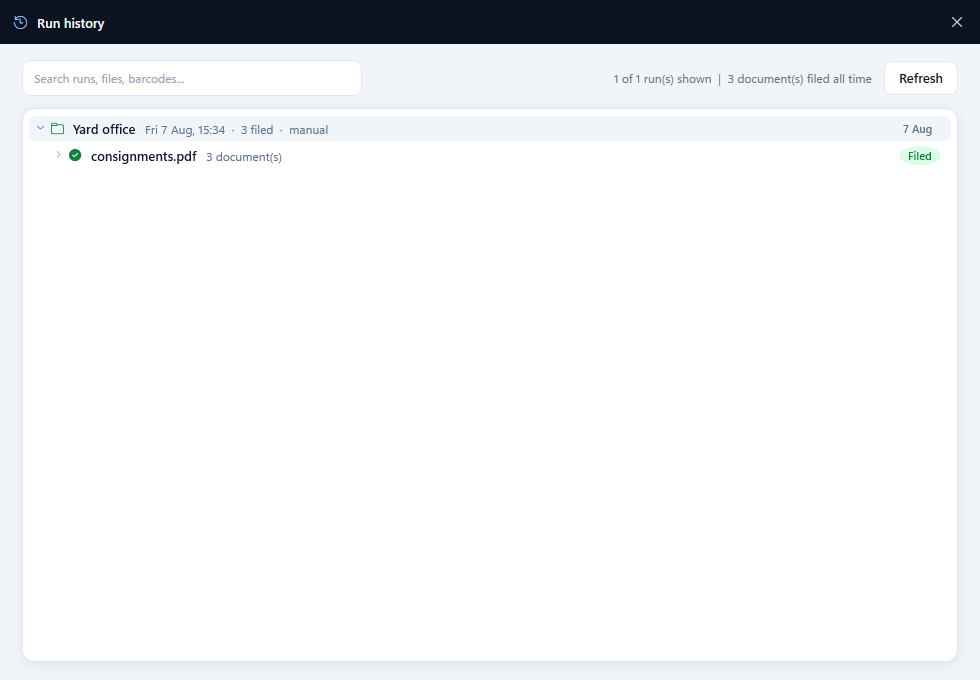
The search box filters by folder, file name, barcode value, destination or status, so where did that docket go is one search rather than a hunt through folders.
Dry runs are not recorded. A dry run writes nothing at all, and history is part of that. Only real runs appear here.
Unattended running
Two ways to have documents filed without anyone pressing Run. Both need an Unattended seat.
Watch, from the app
Turn on Watch. sQRted files documents as they arrive for as long as the app is open. Best for a desk where somebody is working anyway.
Watching is enabled per folder in Configure, along with how often to sweep and how long a file must sit unchanged before it counts as finished. That quiet period matters: a scanner writing a large PDF, or OneDrive still syncing one down, should not be grabbed mid-write.
The Windows Service
For a machine that just quietly files documents, install the service. It survives logoff and reboot and needs nobody signed in.
Sqrted.Service.exe --install          register and start it (run as administrator)
Sqrted.Service.exe --add "C:\Scans\Depot A"
Sqrted.Service.exe --list
Sqrted.Service.exe --console          run in the foreground to troubleshoot
Sqrted.Service.exe --uninstall
The installer offers to register the service when run as administrator. Configuration lives in
C:\ProgramData\Sqrted\service.json, because a service has no user profile of its
own, and problems are written to the Windows Event Log. A folder is only watched if watching
is switched on in its own settings.
Check the service account can reach the folders. A service running as Local System cannot see mapped drives or another user's OneDrive. Give it an account that can, or use full UNC paths.
Alerts
Unattended filing is only trustworthy if failures reach a person. Configure alerts per source folder, by email or webhook.
| Trigger | Fires when |
|---|---|
| On errors | Any file lands in the error folder. On by default. |
| On run failure | A whole run fails, such as an unreachable destination or bad configuration. |
| On success | A summary of every run. Off by default, to avoid alert fatigue. |
Email needs an SMTP server, port and credentials; the password is encrypted for the current Windows user rather than stored as text. A webhook is a URL that receives a JSON summary, which Teams, Slack and most other tools accept. Alerts are throttled, so one folder of bad scans cannot flood the channel.
Registration
sQRted is either registered or not. There is no trial countdown and no expiry.
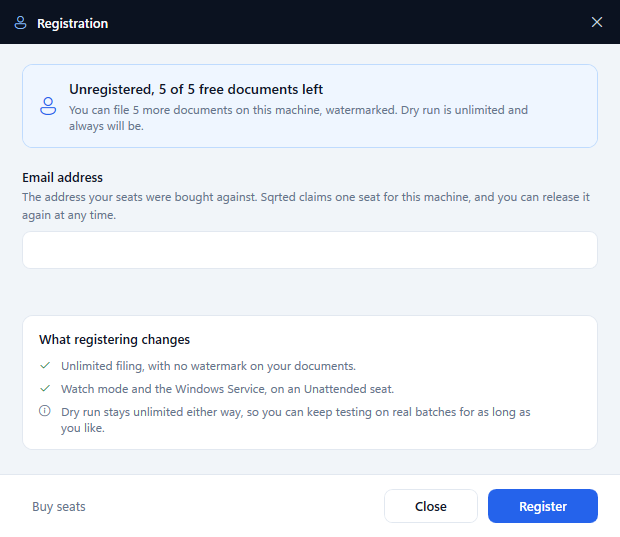
| Unregistered | Registered | |
|---|---|---|
| Filing | 5 documents in total, ever | Unlimited |
| Watermark | On every page | None |
| Dry run | Unlimited | Unlimited |
| Watch and service | Not available | With an Unattended seat |
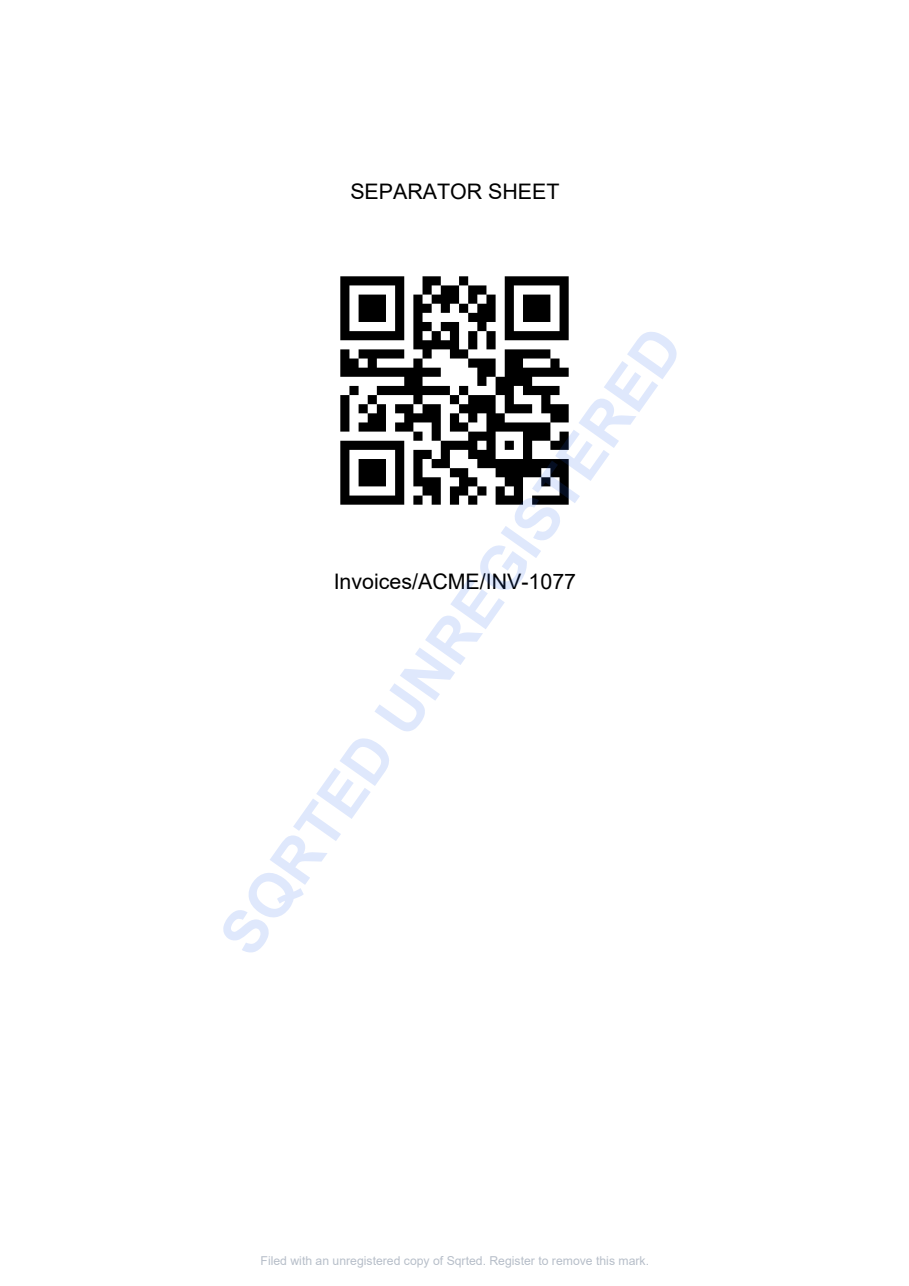
When the five free documents are used, anything still unfiled is left in the source folder rather than skipped. Register and press Run again and the batch finishes where it left off, with nothing lost.
Seats
Seats are bought against an email address, and registering claims one for the machine you are on. Two kinds exist: Desktop for manual runs, and Unattended which also allows watch mode and the service. It is one application either way; the edition belongs to the seat, not to a separate download.
Moving to another machine: release the seat here first, then register on the new machine with the same email. Documents already filed are untouched.
Claiming a seat
Enter the email address the seats were bought against and press Register. A six digit code is emailed to that address; type it in and the seat is claimed. The code proves the address is yours, so nobody who merely knows your email can take a seat you paid for.
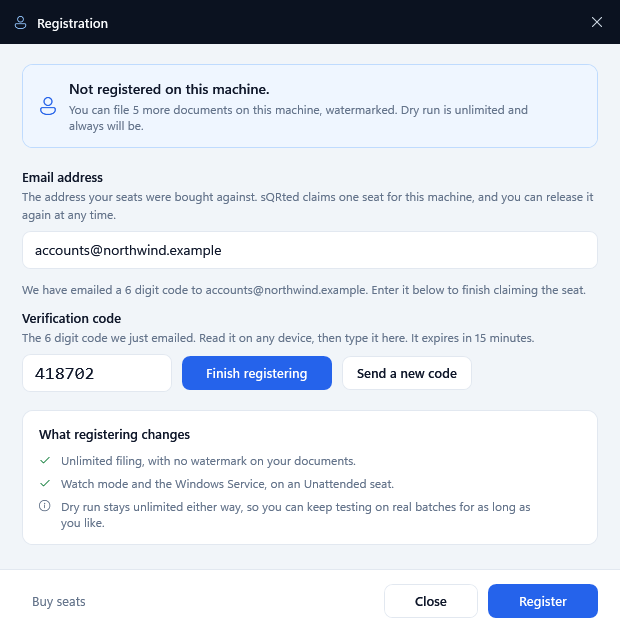
- The code lasts 30 minutes and dies after five wrong attempts. Send a new code issues a fresh one.
- It is not tied to the machine, so a server in a comms room is no problem: read the code on your phone and type it in there.
- You only do this once per machine. Reinstalling on the same machine, the monthly check-in and releasing a seat never ask for a code.
- No email arriving? Check the address matches the one used at checkout, and look in spam for a message from
support@sqrted.com.
Buying seats
The Registration window sells seats directly: enter your email, and if no seat is free the window offers checkout for either kind. Payment is a normal card checkout in the browser; the moment it completes, pressing Register claims the new seat. There are no licence keys to keep: the only thing ever emailed is the short code above, and it is used once.
Staying registered
About once a month, sQRted quietly confirms its seat with the licence service when the app starts. No connection? Filing continues as normal. The check-in falls due after 30 days and there is a further 60 days of grace on top, so only after three months with no successful confirmation does the machine return to unregistered, and registering again fixes it at any time. A released or revoked seat frees up for any other machine on the same email.
Command line
sqrted-cli.exe ships alongside the app, for scheduled tasks and scripts. It uses
the same engine and the same per-folder settings.
sqrted-cli [--dry-run] <sourceFolder> [<sourceFolder2> ...]
sqrted-cli watch <sourceFolder> [...]
sqrted-cli separators <out.pdf> <destinations.txt> [--per-page 1|2|4]
sqrted-cli make-sample <workspaceFolder>
sqrted-cli status
sqrted-cli register <email> [--edition desktop|unattended] [--code 123456]
sqrted-cli deregister
register works in two steps, the same as the app. Run it without
--code and a six digit code is emailed to the address. At a console it prompts
for the code straight away; in a script it exits 3, and you run the command
again passing --code.
| Exit code | Meaning |
|---|---|
| 0 | Everything processed cleanly. |
| 1 | Finished, but something needs attention. |
| 2 | Could not run: bad arguments, missing folder, or configuration error. |
| 3 | register only: a code has been emailed. Run it again with --code. |
To file every fifteen minutes with Task Scheduler, point a task at:
"C:\Program Files\Sqrted\sqrted-cli.exe" "C:\Scans\Depot A"
make-sample builds a small working example, with an inbox, a destination and a
batch containing three QR separator sheets. It is the quickest way to see the whole thing work.
Files and folders sQRted creates
| Location | Contains |
|---|---|
| <source>\_sqrted.json | That folder's settings. Travels with the folder. |
| <source>\processed | Originals, after successful filing. |
| <source>\error | Files with no readable barcode, and pages that had no destination. |
| <source>\log | A log per run, results.csv, and the run history. |
| %AppData%\Sqrted | Your list of source folders. |
| C:\ProgramData\Sqrted | The Windows Service configuration. |
results.csv lists every document with its barcode, page range and final path, which
makes it easy to feed into a spreadsheet or another system.
Troubleshooting
A barcode was not read
Dry run first: it lists each page and what was found. Then, in order of likelihood: check the barcode type is switched on; raise the reading effort to Thorough; make sure sheets were printed at 100% rather than fit to page; check there is clear white space around the barcode, since a barcode printed hard against a box edge or another mark is much harder to read.
Documents went to the error folder
The most common causes are no barcode found anywhere in the file, pages sitting before the first barcode, a barcode that cannot form a valid path, or a name clash while the destination is set to divert duplicates. The results tree and the run log both give the specific reason for each one.
The wrong pages ended up together
A new document starts at every barcode, so this almost always means a separator sheet was missing or was picked up out of order at the scanner. Dry run shows which pages carried barcodes, which usually makes the gap obvious.
A file was skipped
It was probably still being written. sQRted retries a locked file and then leaves it for the next run rather than reading half a document. If it happens often, raise the quiet period in Configure so slow scanners get more time.
Nothing happens in watch mode
Watching must be switched on in that folder's own settings, not just with the Watch toggle. Also check the seat is an Unattended one. On network and synced folders, file change notifications can be unreliable, which is exactly why the timed sweep exists as a backstop.
Filed documents are watermarked
The machine is unregistered. Register it from the title bar to remove the mark; documents already filed keep it, so re-file anything you need clean.
Still stuck? Email support@sqrted.com with the run log
from the source folder's log folder, which usually contains the answer.